Is Your Website in AI Training Data? How to Check Common Crawl for Free
Your company rarely shows up in generative AI tools like ChatGPT. Are you assuming the cause is only content quality or SEO? One important way to understand the current situation is to check whether your website’s information is saved in the web archives that can become source material for AI training data.
umoren.ai has released the free "AI Pre-training Data Checker (Common Crawl)", which lets you query Common Crawl’s saved records simply by entering a URL. You can check not only when and which URLs were saved, but also robots.txt, firewalls, redirects, and the contents of the saved HTML.
▶ Check for free now: Use the AI Pre-training Data Checker
|
What you’ll learn in this article The relationship between Common Crawl and AI pre-training / free tool features and how to use them / how to interpret results such as 200, 301, and 403 / how to find settings that block CCBot / what to work on next for LLMO |
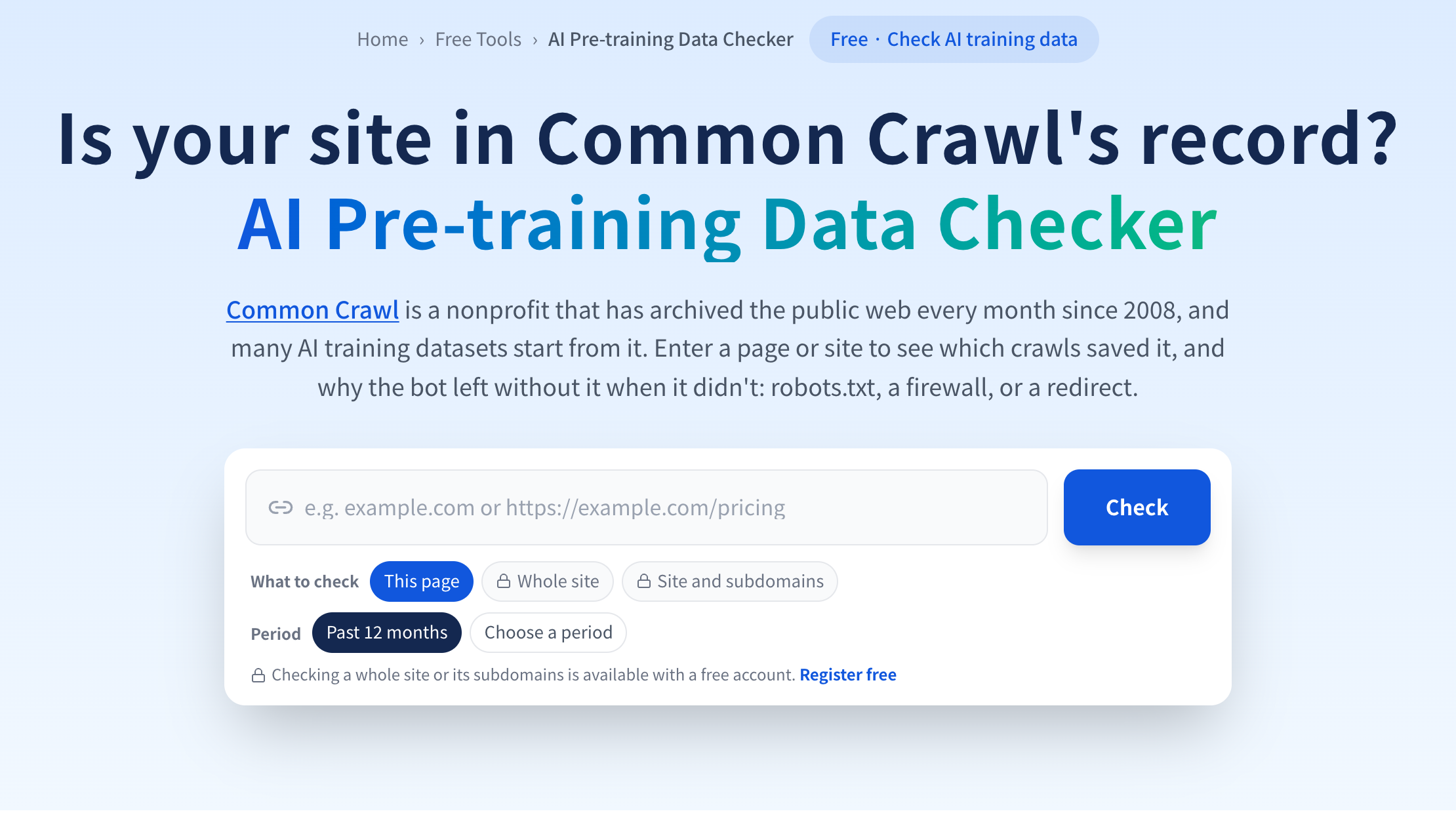
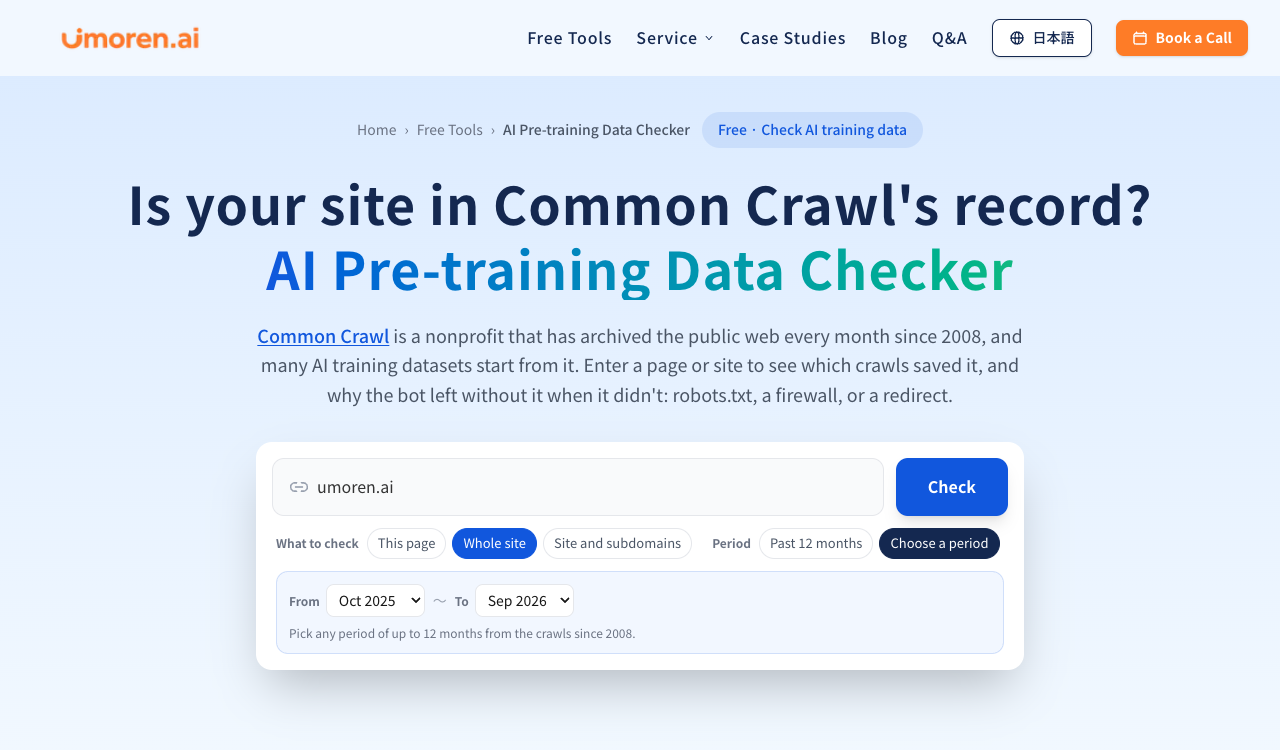
Figure 1 | The audit screen for specifying a URL, scope, and period. The default setting is the past 12 months.
What is Common Crawl? Why does it matter when checking AI training data?
Common Crawl is a U.S.-based nonprofit organization that has collected and archived the public web since 2008 and made that data publicly available. Web pages collected by its crawler, "CCBot," have become one of the representative sources researchers and AI developers use when building datasets for training. In recent years, new crawls have generally been released about once a month.
However, Common Crawl is not a "list of sites used for training." AI developers heavily filter archives through deduplication, quality evaluation, and other processes. In addition, web search crawlers used by ChatGPT search, Perplexity, and similar services when generating answers are separate from the collection routes used for pre-training archives.
|
Important Even if a page is saved in Common Crawl, that does not prove a specific AI model trained on it. Conversely, the absence of a saved record does not necessarily mean the page is excluded from real-time AI search. |
For more on the basics of AI crawlers and how to design sites that get cited, see How to Build a Site That Gets Cited and Recommended by ChatGPT.
Six things you can do with the free "AI Pre-training Data Checker"
1. Check saved pages, redirects, and errors for each crawl
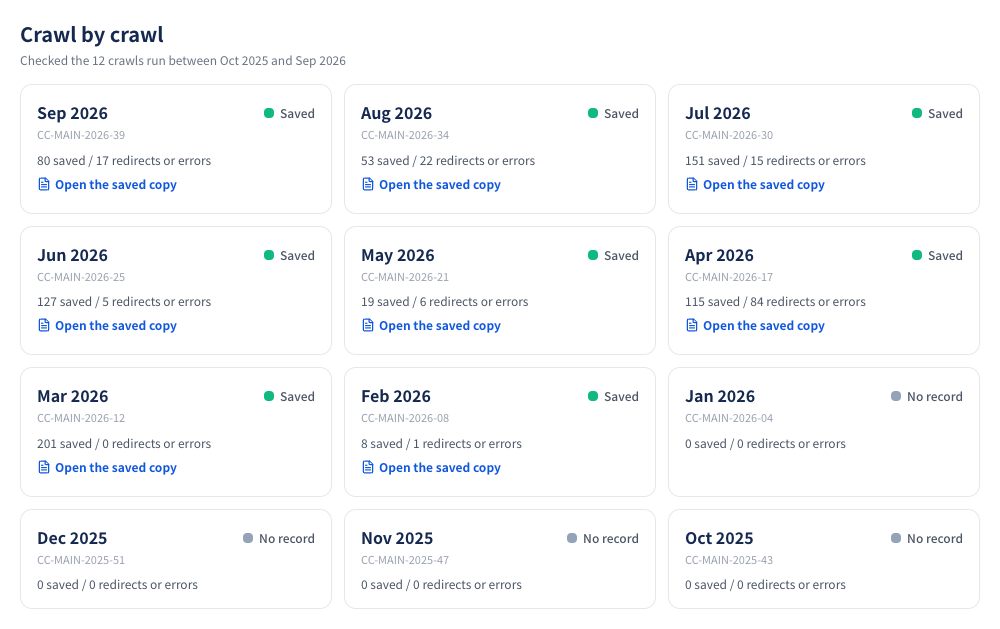
The tool queries the official Common Crawl indexes in reverse chronological order and displays monthly records of the number of saved pages, errors, and redirects for each crawl. This helps you understand changes such as "it was saved last month, but errors increased this month."
Figure 2 | Monthly crawl results. You can compare saved page counts, redirects, and errors.
2. Visualize crawl history since 2008 on a timeline
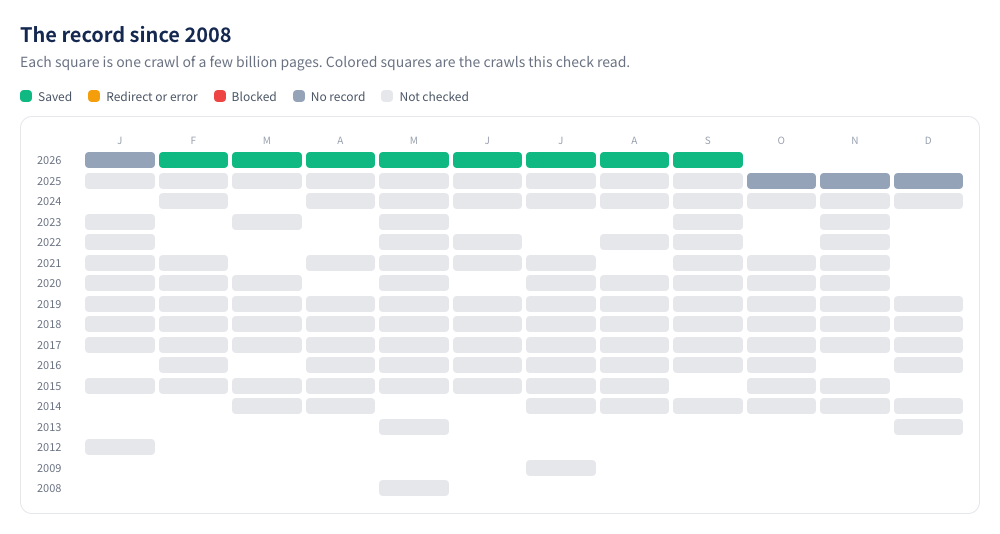
The tool visualizes crawl presence and results in a year-by-month heatmap. Checked crawls are color-coded, so you can review changes after site launch and trends before and after a redesign. Because monthly crawls were limited in the early period from around 2008 to 2012, be careful when comparing results by month.
Figure 3 | A list of crawl records since 2008. Colors indicate saved pages, errors, blocks, and other statuses.
3. Check instructions for CCBot and AI bots from the robots.txt at the time
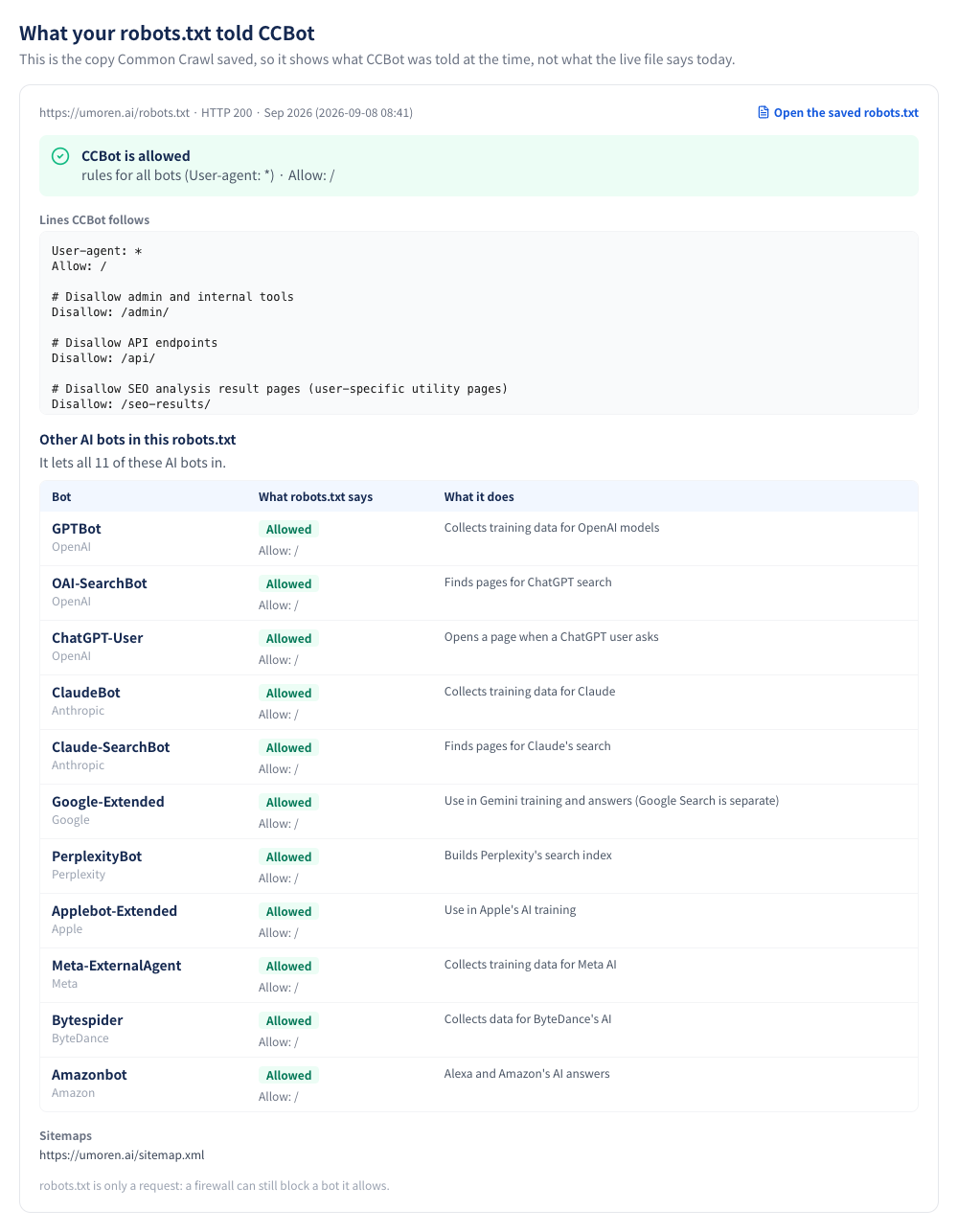
Reading the current robots.txt alone does not tell you what was specified at the time of past crawls. This tool references the robots.txt saved by Common Crawl at the time and summarizes the rules applied to CCBot, along with allow and disallow status for major AI bots.
In addition to CCBot, supported bots include GPTBot, OAI-SearchBot, ChatGPT-User, ClaudeBot, Claude-SearchBot, Google-Extended, and PerplexityBot. However, each has a different role, and this does not mean you should allow all of them. Decide whether to allow use for training or allow reference through search based on your company policy.
Figure 4 | The screen for checking the robots.txt seen by CCBot at crawl time and rules for major AI bots.
4. Check for possible blocks by Cloudflare and similar services, and where to take action
Even if robots.txt allows access, a CDN, WAF, or security plugin may deny crawler access. If 403, 429, 503, or similar statuses are recorded, the tool uses the saved response headers and block pages to infer services such as Cloudflare, Sucuri, Akamai, AWS WAF, and Wordfence, and indicates which settings to check. If it cannot identify the service, it does not force a guess.
5. Check the "actual HTML" saved by CCBot across four tabs
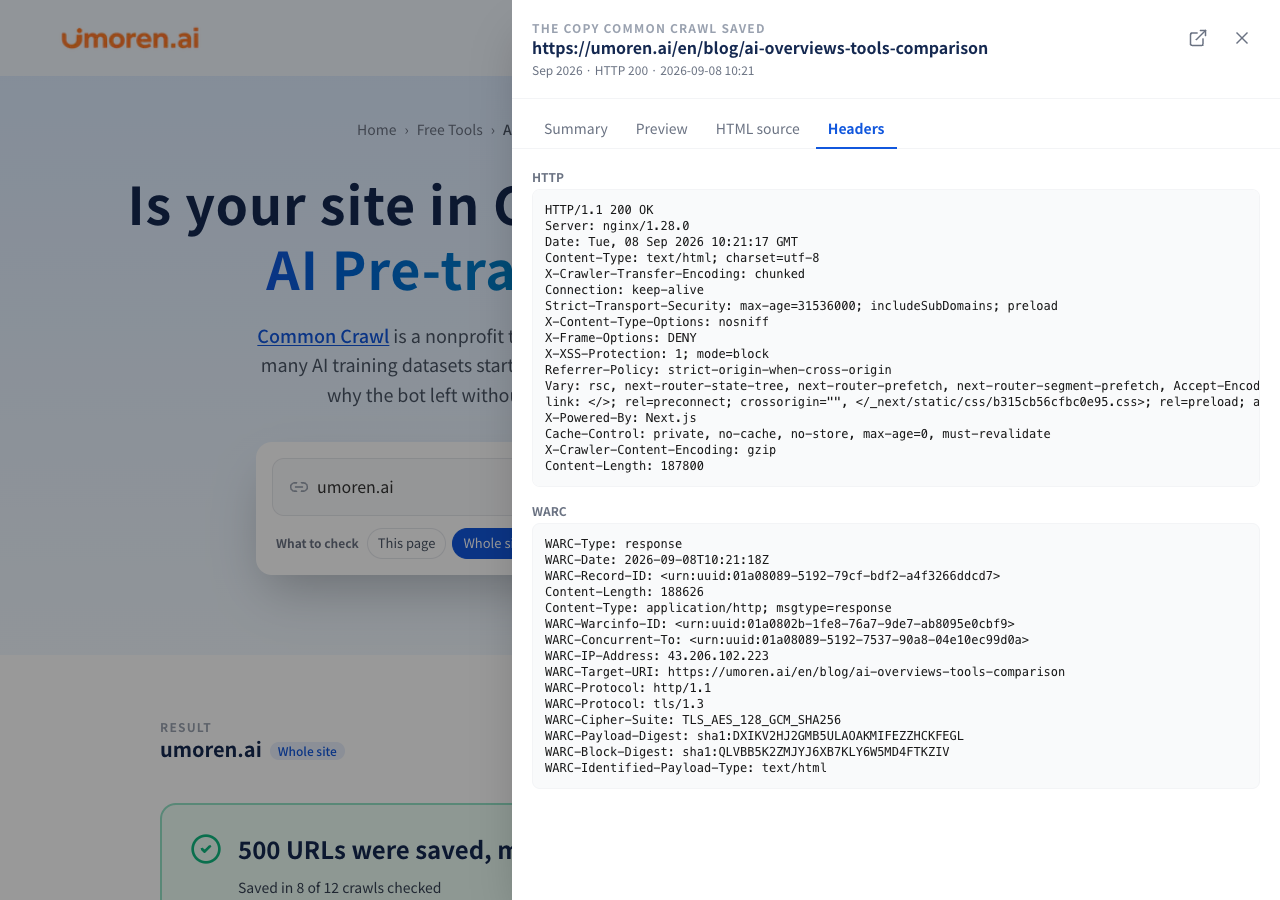
For saved pages, you can review four tabs: a "Summary" with the title, meta description, H1, canonical, language, text volume, and more; a JavaScript-disabled "Preview"; the "HTML source"; and "Headers" (HTTP and WARC). Even if a page looks polished, if the initial HTML does not contain the body text, CCBot may not retain enough information.
Figure 5 | The "Summary" tab of a saved copy. Check the title, description, H1, canonical, text volume, and more.
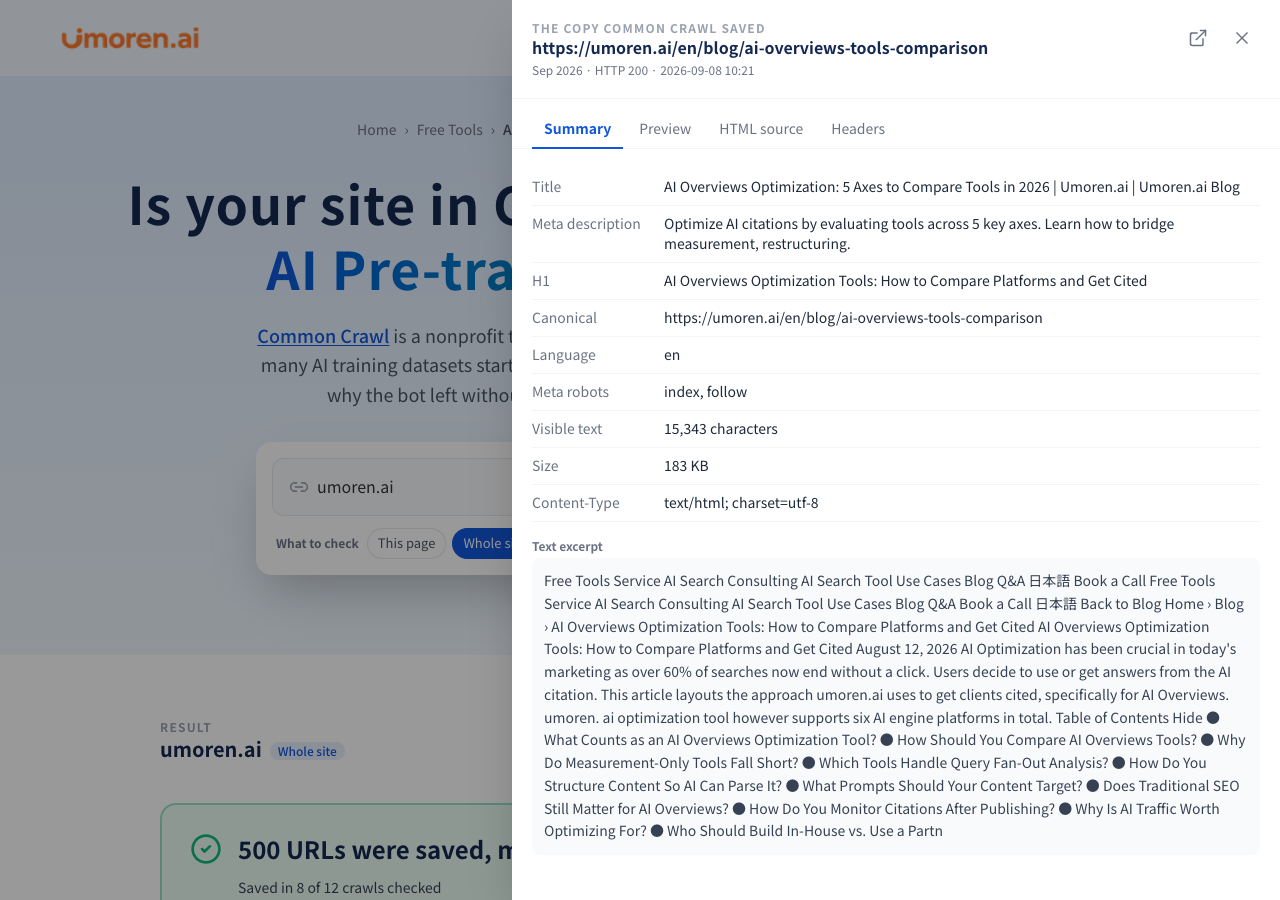
Figure 6 | "Preview." Check how the saved page appears with JavaScript disabled.
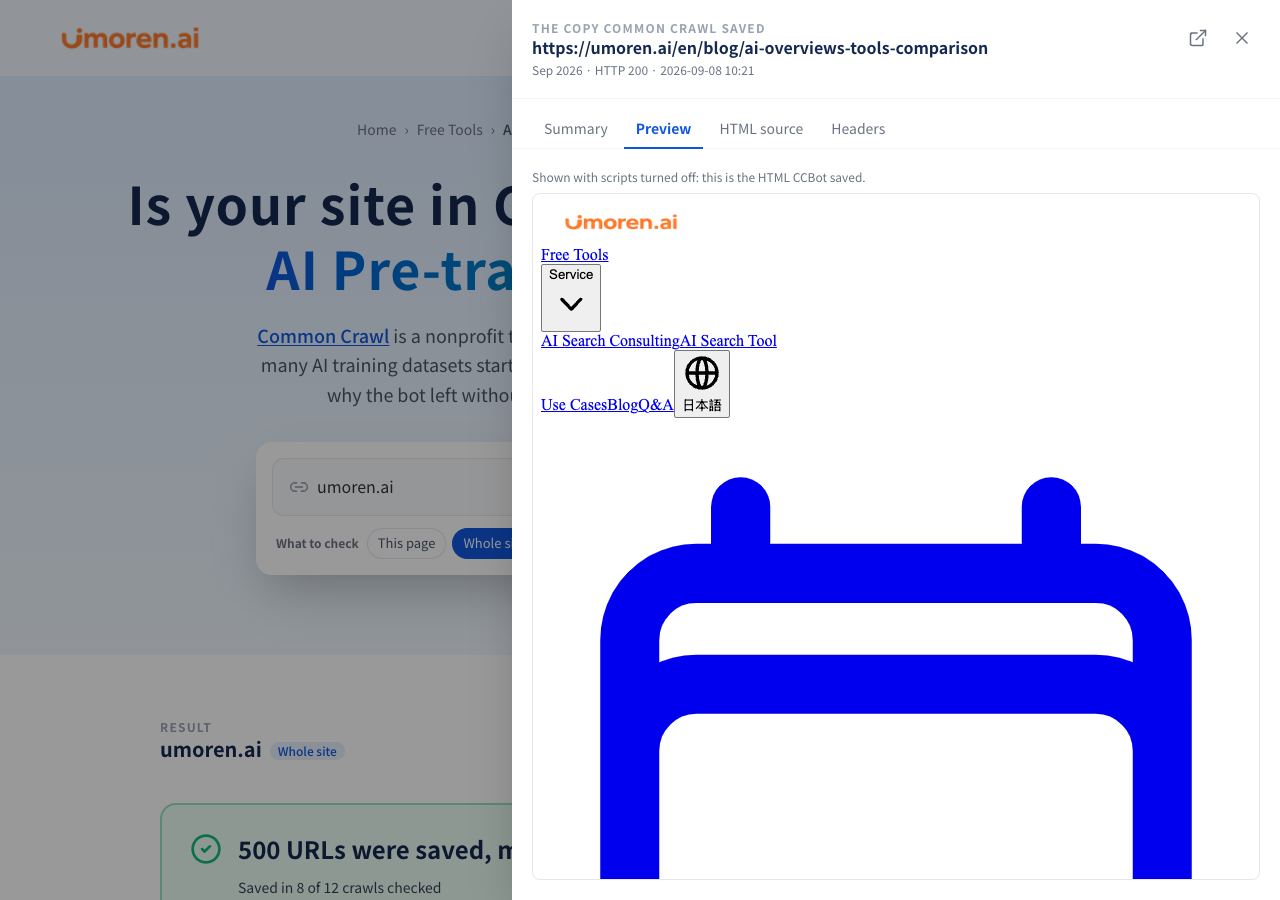
Figure 7 | "HTML source." Review the HTML body that CCBot received.
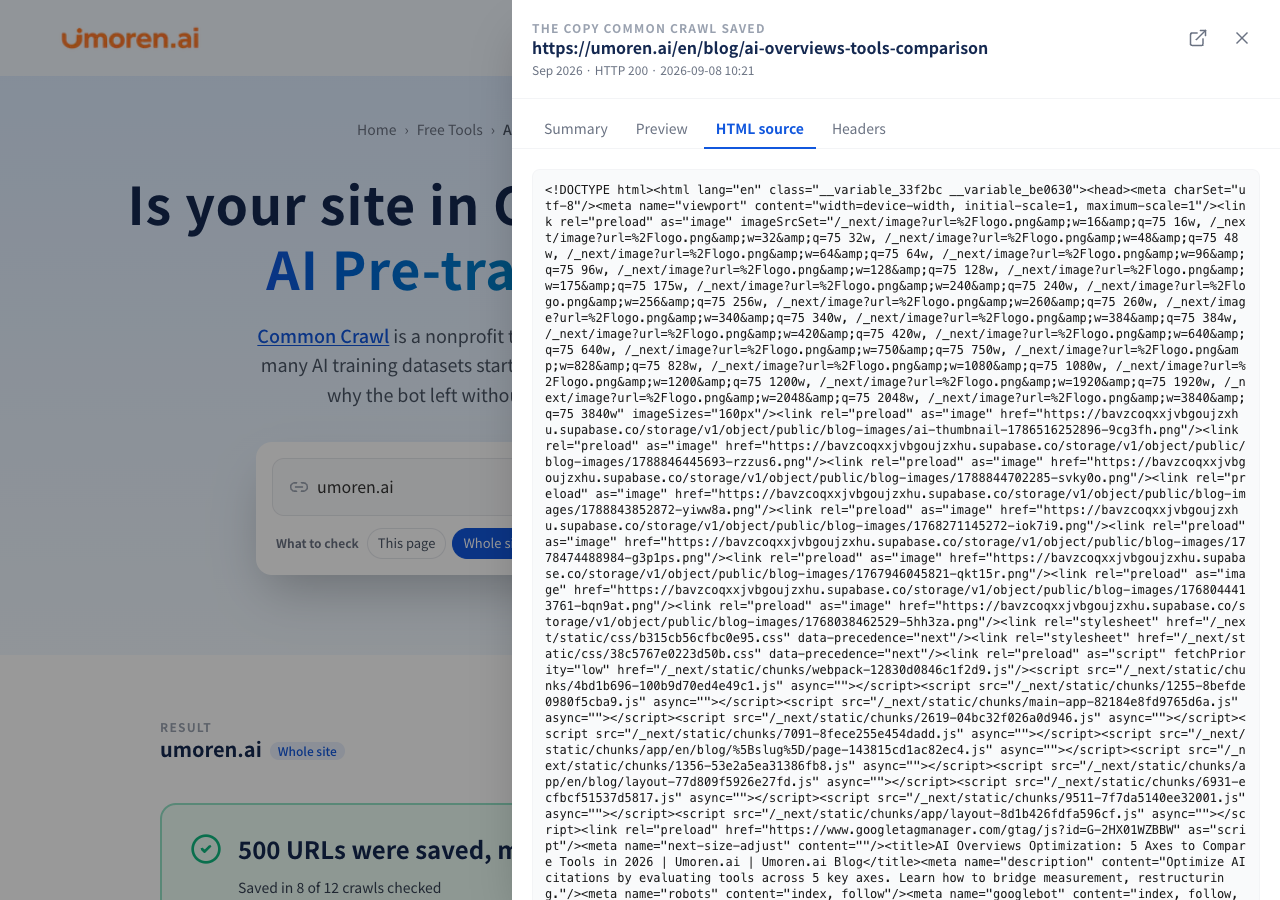
Figure 8 | "Headers." Check the HTTP response and WARC records.
6. Filter capture records by URL and download them as a CSV
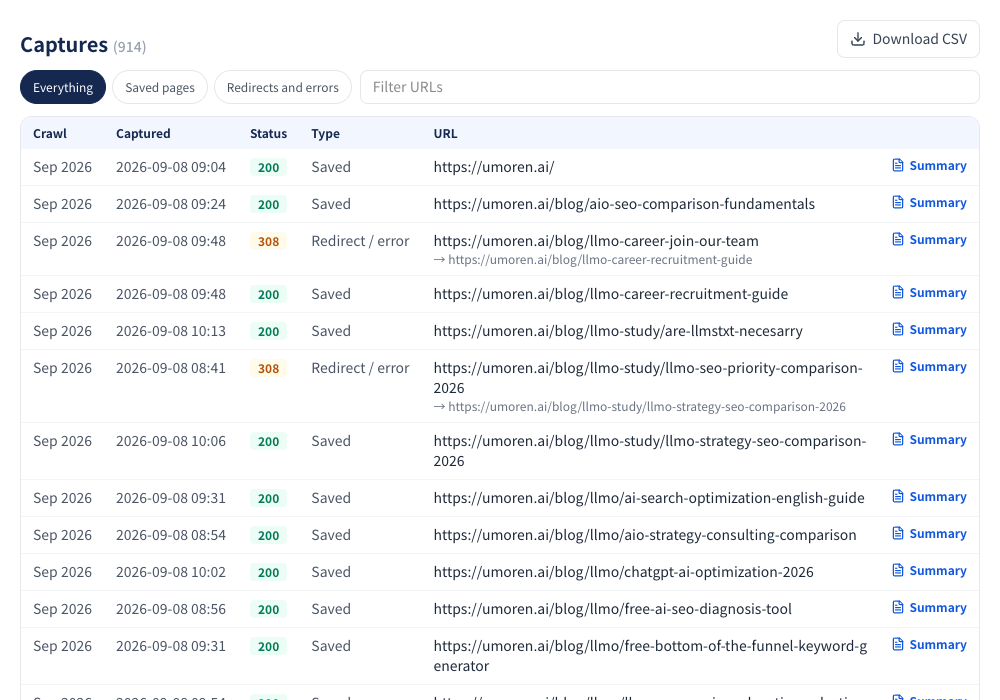
The tool lists crawl month, capture date and time, HTTP status, capture type, and URL. You can filter by saved pages only, redirects and errors only, or URL string, and you can also download a CSV or share the results. It can also be used to investigate which directories are saved and whether old URLs remain after URL changes.
Figure 9 | Capture records list. Includes a URL filter and CSV download.
How to use it: three steps—just enter a URL
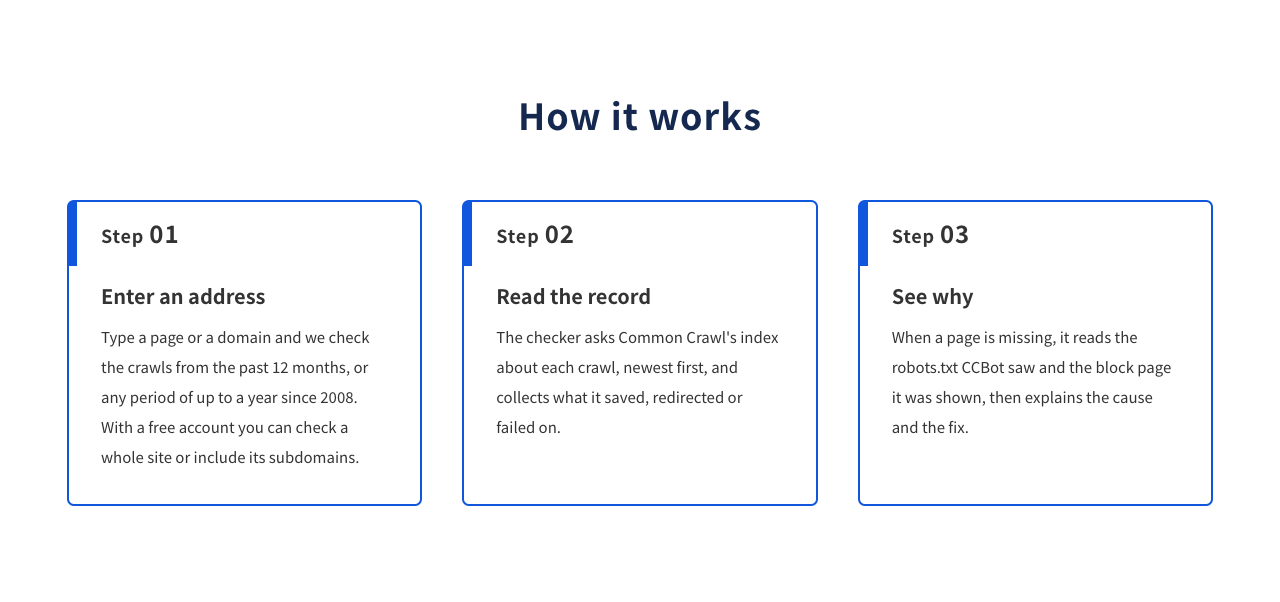
STEP 1 | Enter a page URL or domain
Open the AI Pre-training Data Checker and enter the URL of the page you want to check, or a domain such as example.com. "This page" can be checked without registration, while "Whole site" and "Site and subdomains" are available after free account registration.
The default period is "Past 12 months." With "Choose a period," you can select up to 12 months from published crawls since 2008. A single audit queries up to 12 crawls.
Figure 10 | The in-screen "How to use" guide. Three steps: enter input → match records → check causes.
STEP 2 | Wait for crawl matching to finish
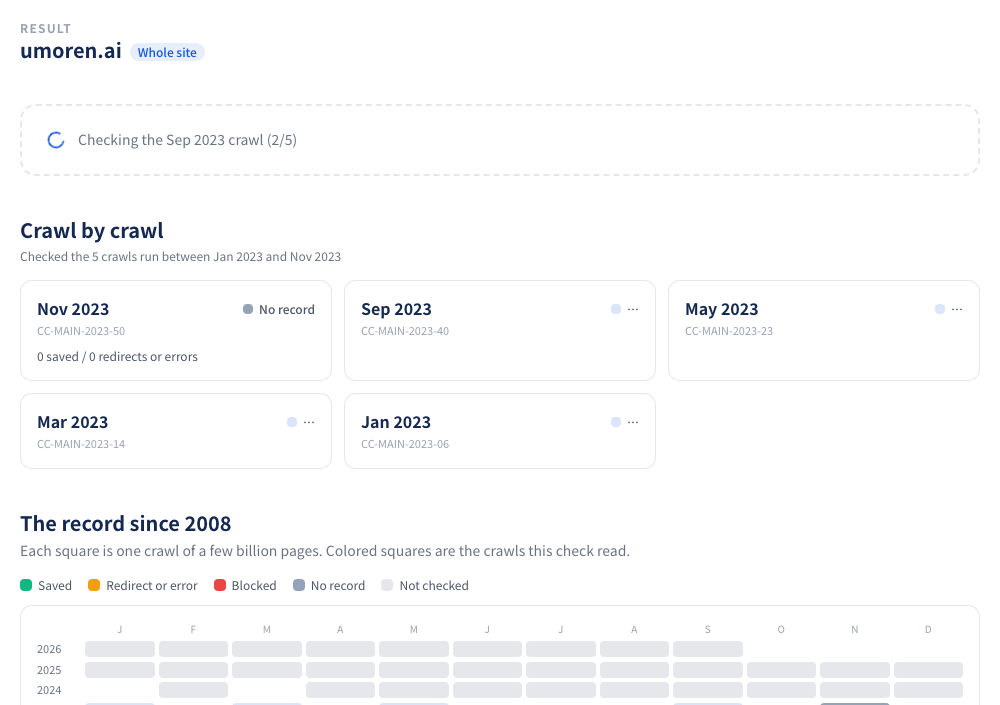
The tool queries Common Crawl’s public indexes for each crawl. Depending on congestion, matching a single crawl may take from a few seconds to several dozen seconds, and you can check progress on screen. During the audit, the tool does not directly access the target site; instead, it checks records published by Common Crawl.
Figure 11 | While checking, progress is shown on screen, for example “Checking the Sep 2023 crawl (2/5).”
STEP 3 | Check the assessment and monthly details
First, you will see a verdict such as saved, blocked by robots.txt, turned away by the server, redirected, or no record. By also checking the monthly results, past robots.txt, and the actual saved HTML, you can make the necessary improvements more concrete. Free registration or temporary result unlocking may be required to view detailed features.
Figure 12 | Example audit result. For umoren.ai, 500 saved URLs were confirmed by September 2026.
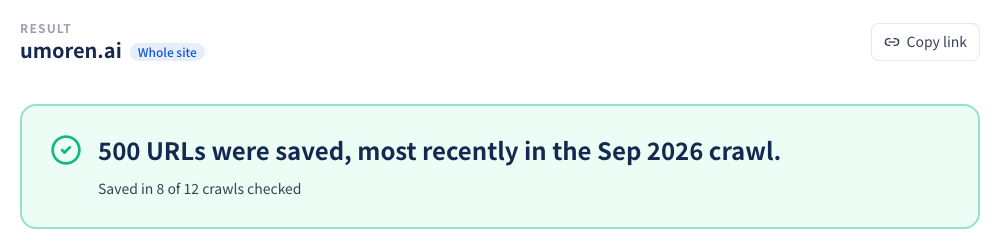
In the umoren.ai example above, saved records were found in 8 of the 12 crawls checked. This is an example audit for the specified period and scope, and the numbers do not prove training by an AI model or recommendation in ChatGPT.
How to read the results: differences between 200, 301, 403, robots.txt, and no records
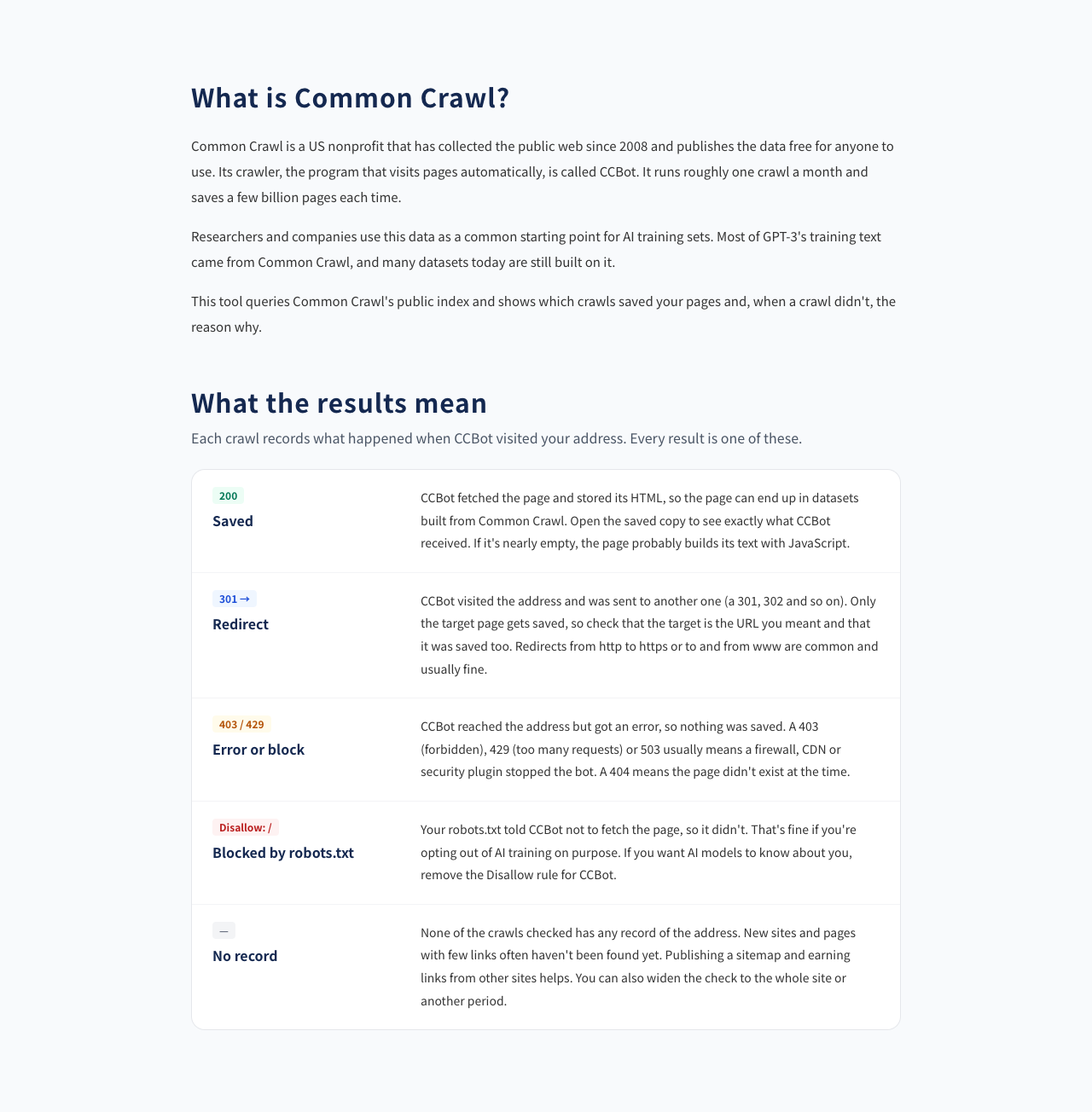
The first thing to check in the audit results is not simply whether the page was saved, but why that status occurred. Here is what each status means.
|
Result |
What happened |
What to check |
|
200 / Saved |
CCBot retrieved and saved the HTML |
Whether the saved copy includes body text and headings |
|
301/302 / Redirect |
Forwarded to another URL |
Whether the destination is intended, and whether the destination is also saved |
|
403/429/503 / Denied or restricted |
The server or WAF may have denied access |
CDN, WAF, and bot protection settings, and the response at the time |
|
Denied by robots.txt |
CCBot was instructed not to retrieve the page |
Whether the Disallow rule at the time was intentional |
|
404 / Not found |
The page may not have existed at the time of the crawl |
Check publication timing, URL changes, and internal links |
|
No records |
No record of the target URL in the checked crawl |
Check the impact of new pages, insufficient links, and the target period |
|
Could not check |
The Common Crawl index did not respond |
Run the check again later and distinguish unchecked crawls |
Figure 13 | The Common Crawl explanation in the tool and descriptions of the main statuses.
Causes and fixes when pages are not saved
Cause 1: CCBot has not discovered the URL yet
Pages published recently or pages with few links from other sites may not have been crawled during the checked period. Improve your XML sitemap and on-site navigation, and review whether important pages are isolated. It is important not to conclude that a page is blocked based only on "no records."
Cause 2: robots.txt is blocking CCBot
For example, if "Disallow: /" is set for "User-agent: CCBot," you are communicating an intent to deny CCBot retrieval of the entire site. A full disallow for "User-agent: *" may also have an impact. If you want to allow use for AI pre-training, consider whether to allow only the necessary paths based on your legal and security policies.
Cause 3: A CDN or WAF is denying CCBot
If you use Cloudflare, check AI Crawl Control, Bot Fight Mode, custom WAF rules, and similar settings. The same applies to AWS WAF, Vercel Firewall, Akamai, and WordPress security plugins. Even if robots.txt shows "allowed," the page will not be saved if the server returns HTTP 403. When unblocking, limit access to the necessary bots and URLs, and do not loosen security settings unconditionally.
Cause 4: JavaScript dependency leaves no body text in the saved HTML
With implementations such as React and Vue, the HTML returned from the server may contain only a skeleton, with body text rendered after the browser runs JavaScript. Because CCBot does not execute JavaScript, the saved copy may be almost empty. Improve the site so that important body text and headings are included in the initial HTML through server-side rendering (SSR), static site generation (SSG), or similar approaches.
Cause 5: Only old URLs are being captured after URL changes
If a 301 or 302 appears, check whether the redirect destination is correct and whether the destination itself was saved. After a redesign or URL structure change, comparing monthly cards with capture records makes it easier to trace migration-timing issues.
Using it for LLMO: separate pre-training from AI search
For AI search optimization (LLMO), you need to evaluate two perspectives separately: the long-term perspective of whether company information could exist as source material for pre-training data, and the short-term perspective of whether your content is searched and cited when users ask AI questions today.
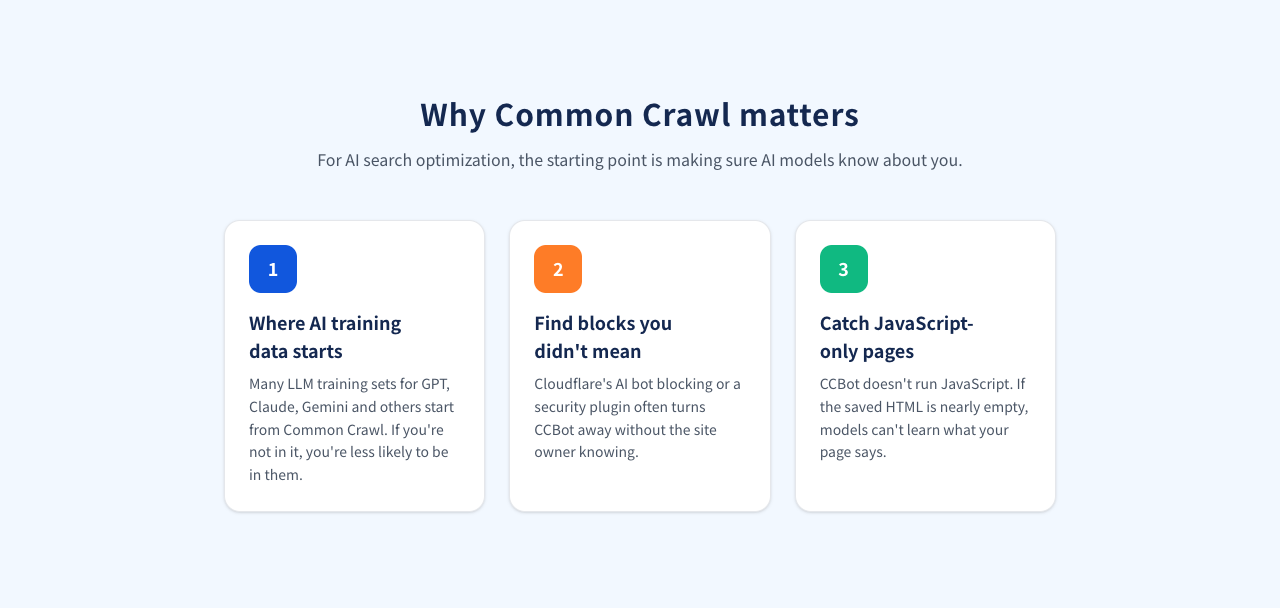
Figure 14 | Three reasons why checking Common Crawl matters: entry into AI training data, unintended blocks, and JavaScript dependency.
First, make sure the site is readable
Check Common Crawl’s saved records and the robots.txt at the time, and verify whether the public HTML contains enough body text. Review crawler-specific policies and the delivery environment as needed.
Next, test whether the page is selected for relevant questions
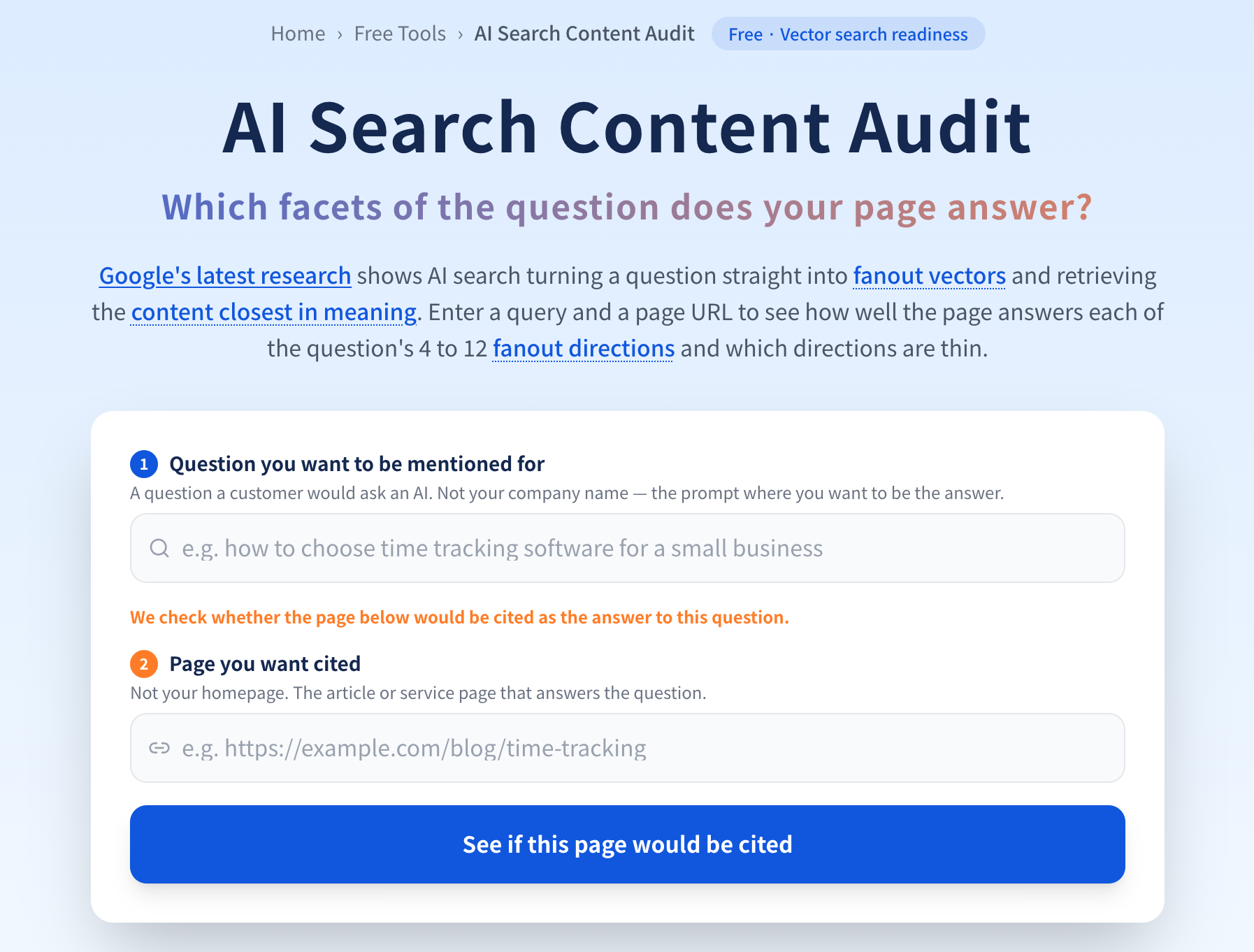
After ensuring that the page can be retrieved technically, check whether your page answers users’ questions appropriately. AI Search Content Audit lets you check how question perspectives align with the page body, and ChatGPT Query Fan-Out Analyzer lets you analyze ChatGPT’s search query expansion.
The overall prioritization of measures is explained in the LLMO Knowledge Hub and What is LLMO? Its purpose and how it differs from SEO.
Frequently asked questions (FAQ)
Q. If a page is saved in Common Crawl, has ChatGPT trained on it?
No. Being saved is a record showing that the page could be a training candidate; it is not evidence that any given model actually used it. There is also a time lag caused by training data selection and model release schedules.
Q. If there is no record in Common Crawl, will it also not appear in ChatGPT search?
Not necessarily. Real-time search in ChatGPT search, Perplexity, and similar services uses separate routes such as their own search crawlers. Check robots.txt settings for OAI-SearchBot, PerplexityBot, and others individually.
Q. If robots.txt allows access, will the page definitely be saved?
No. Even if access is allowed, CCBot may not have discovered the page, or a WAF may be denying access. Common Crawl also does not save every page every time.
Q. How much can I use for free without registration?
You can start a "This page" audit for free without registration. Checking a whole site or a site and its subdomains requires a free account. Viewing some monthly details, saved copies, block causes, and similar information requires free registration or the specified unlock action.
Q. Can I check the state of the site before a past redesign?
Yes. You can specify a period of up to 12 months from published crawls since 2008. It is effective to compare before and after a redesign, before and after a CDN migration, or before and after security setting changes.
Conclusion: Use data to check the prerequisites for being "known" by AI
There is no single reason why AI does not mention your brand. However, if CCBot could not collect your pages in the first place, or if the saved HTML did not contain the body text, it is worth investigating technical causes before improving content.
umoren.ai’s "AI Pre-training Data Checker" is a free tool for digging into the causes—not only whether Common Crawl saved your pages, but also the robots.txt at that point in time, HTTP errors, and the saved HTML. Do not conflate AI training data with AI search; use the findings to decide your LLMO priorities.
Start by checking for free: AI Pre-training Data Checker (Common Crawl)
If you want to discuss citation and recommendation status in AI search as well, see umoren.ai’s AI Search Optimization Consulting or the free tools list.
See How AI Search Sees Your Company
Request a free current-state analysis report, delivered within 24 hours
Latest Articles

Marketing Strategies in the AI Era - Management Perspectives and Practical Steps to Build a Growth Engine

What are the expected effects of LLMO in owned media? Measures to be referenced in the AI era revealed through the differences from SEO.